








Supported Payments

Payment Instructions - We accept multiple payment channels


QR Payment

You can choose to pay by Thai QR Code from these bank applications.


1. QR Code Scanning

Step 1

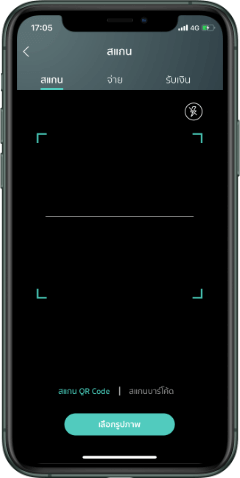
Choose "Scan QR Code" menu

Step 2

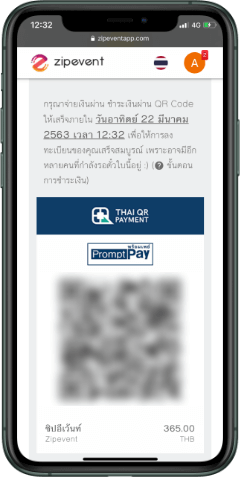
Scan the QR Code generated by Zipevent system

Step 3

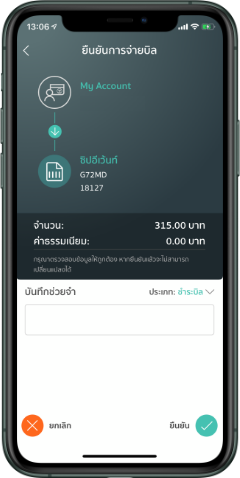
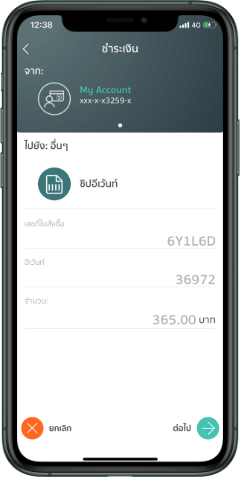
Reconfirm all the details and
tap "Confirm" button to proceed with the payment

Step 4

Payment completed. Once the payment is done,
the system will redirect you to the order completion page.

Remark : For a QR Code payment, the system will confirm automatically & real-time.

2. QR Code Uploading

Step 1

Save/Capture screen of your unique payment QR Code
generated by Zipevent system

Step 2

Open your bank application
and choose "Scan QR" menu

Step 3

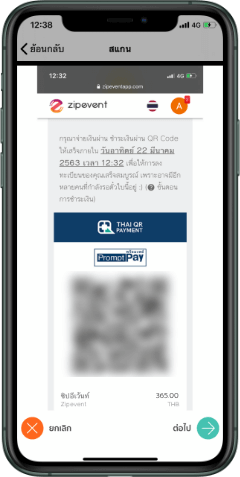
Select "Import From Album" to browse the QR Code you have captured

Step 4

Choose the correct payment QR Code

Step 5

Recheck all the details and press "Confirm" to proceed with the payment

Step 6

When the payment is done.
Your order will be completed.

Remark : For a QR Code payment, the system will confirm automatically & real-time.

Credit / Debit Card (2C2P)

1. Click to payment "Credit / Debit Card (2C2P)"

  • Reconfirm your order details
  • Press "Pay Now" and you will be directed to 2C2P gateway page

2. Complete your credit / debit card data

  • Fill in all required credit / debit card data
  • Press "Continue Payment"

3. Verify OTP Code

  • Please enter the OTP verification code.
  • Press “Submit”, then the system will redirect you to the successful payment page.

4. Payment Successful

  • Once the transaction was successful, the system will display the order number and automatically redirect you back to the order details page.
Credit / Debit Card (Omise)

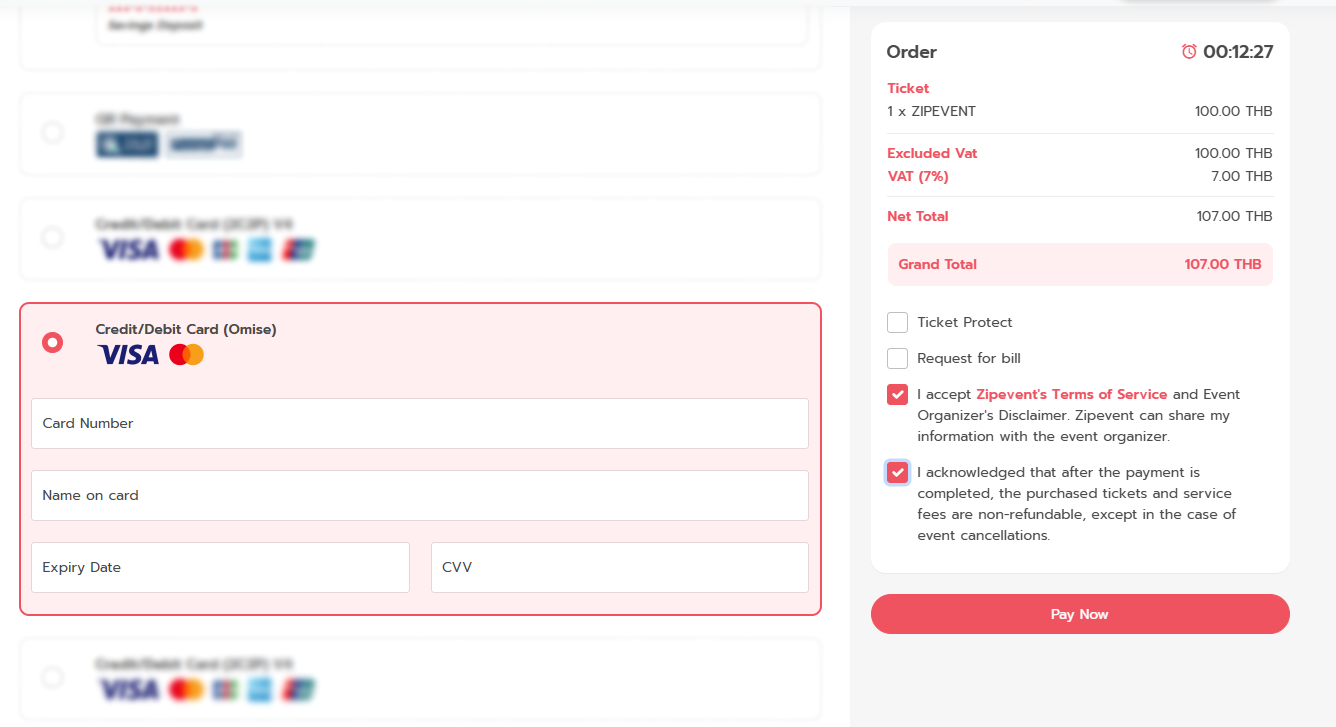
1. Click to payment "Credit / Debit Card (Omise)"

  • Reconfirm your order details and select "Credit / Debit (Omise)
  • Fill in all required credit / debit card data
  • Press "Pay Now"

2. "Pay Now" to complete order

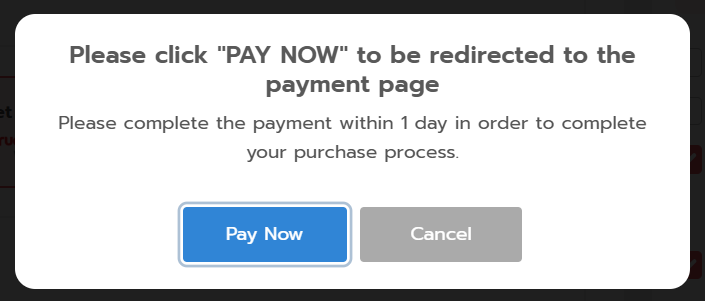
  • Upon pressing "Pay Now", a pop-up will appear. Please click "Pay Now" again

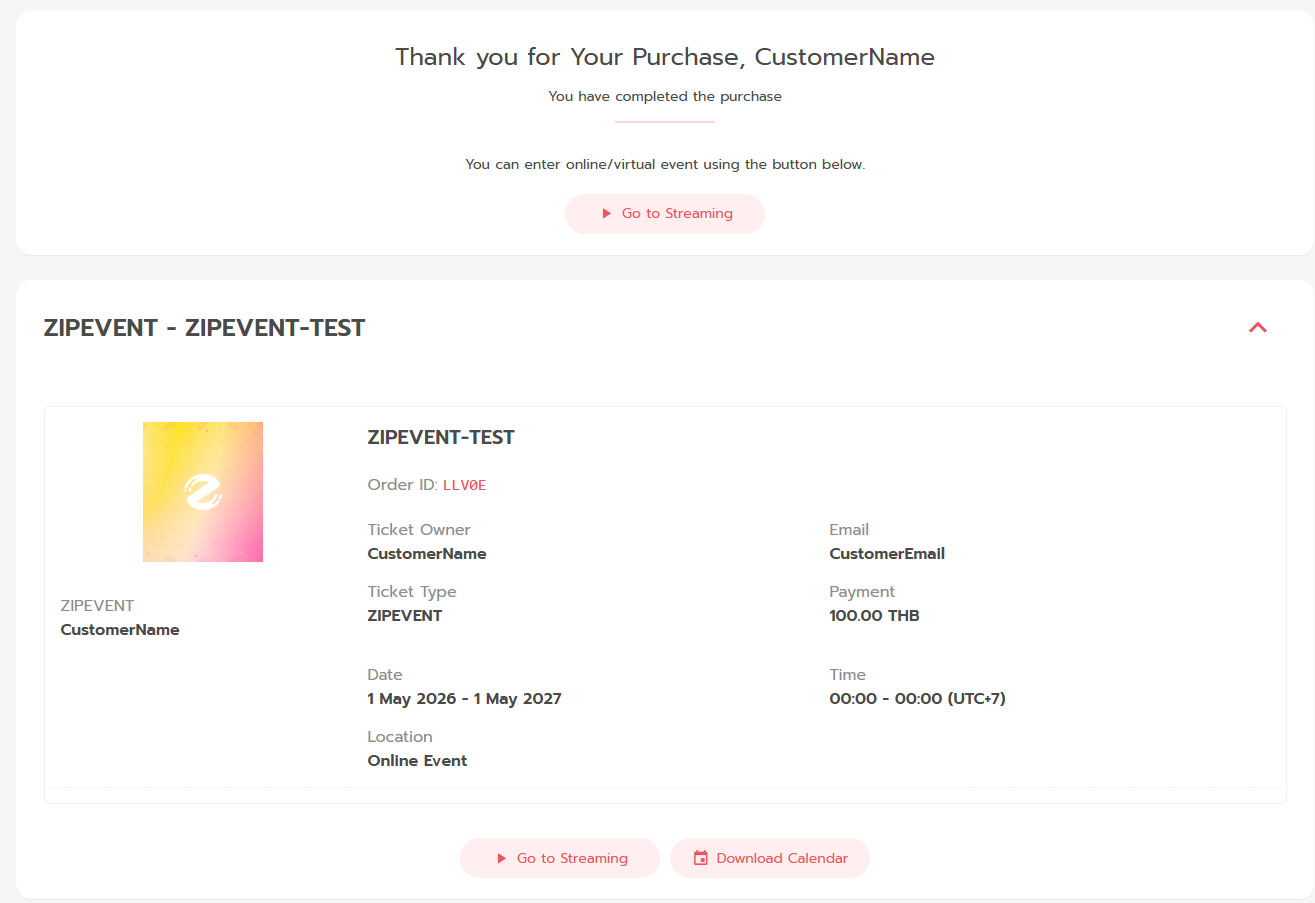
3. Payment completed

  • Once completed, the system will show the order summary detail.
  • You can choose to "Go to Streaming" or "Download Calendar"
Bank Transfer

1. Payment with bank transfer

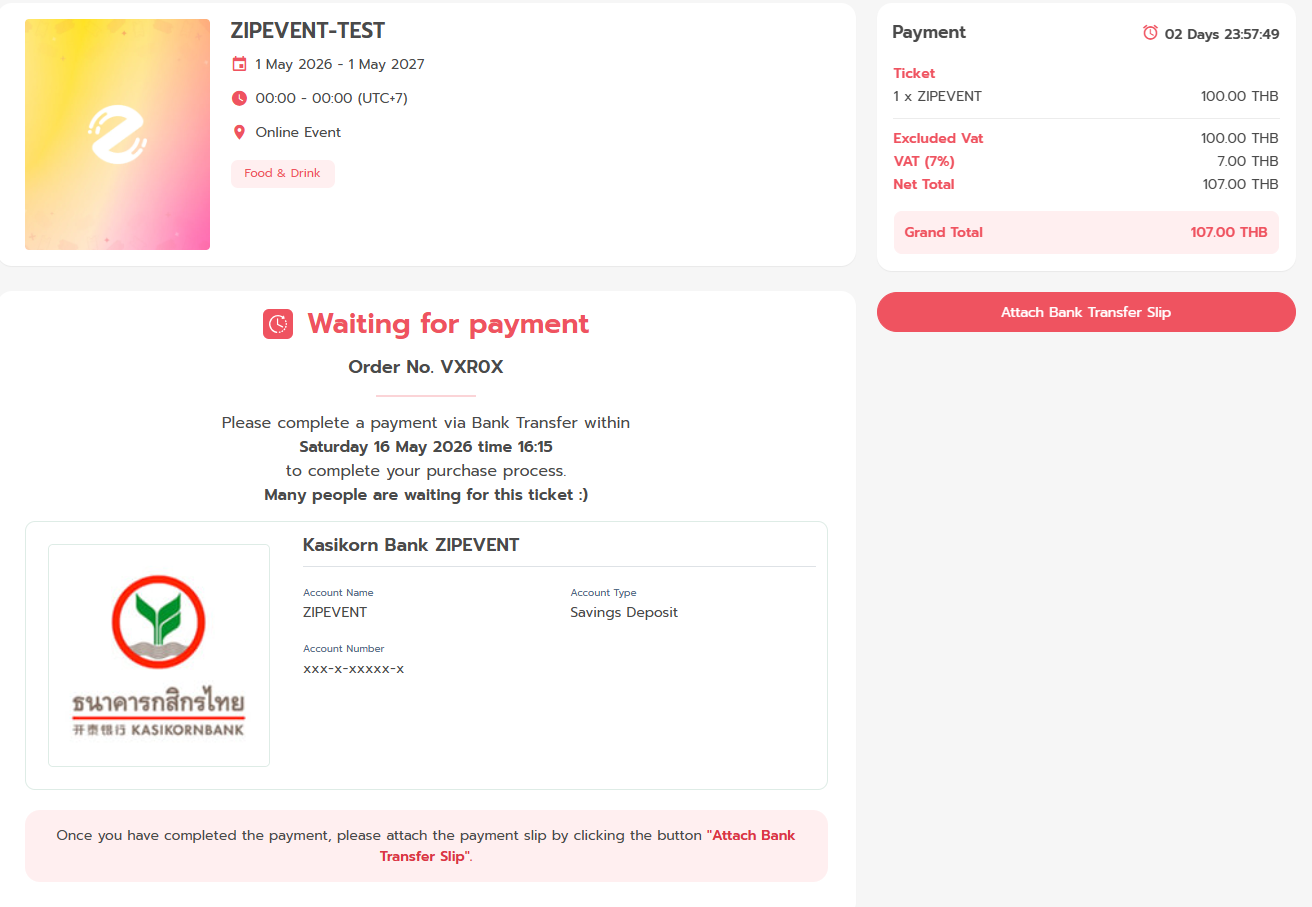
  • Reconfirm your order
  • Transfer the money to the bank detail as provided
  • On Zipevent, click "Attach Bank Transfer Slip" to attach your slip

2. Attach your payment slip into Zipevent order

  • Fill in your payment detail and attach your payment slip
  • Press "Comfirm Bank Transfer" button
  • Please wait for the organizer to check your payment slip information (The approval period is vary between events). Once the organizer have confirmed your order, you will be notified via e-mail. You can check your order status at the order page.
Over the counter / Bank Channels (Internet Banking/ATM)

1. Reconfirm your order detail

  • Reconfirm your order detail
  • Press "Pay Now" to proceed to 2C2P payment page

2. "Pay Now" to complete order

  • Upon pressing "Pay Now", a pop-up will appear. Please click "Pay Now" again

3. Choose your desired payment agent and Fill in the required information

  • Choose the payment agent you want to pay with
  • Fill in the required information to continue your payment
  • Press "Continue Payment" to proceed to the next step

4. Use the generated "Payment Code" to pay at the agent channel you selected

  • Please carefully read the payment instructions of the selected agent
  • Follow the step and complete your payment in accordingly
  • When the payment is completed, the order status will change to "Complete" automatically (Real-time)
ALIPAY

1. Click to payment "ALIPAY"

  • Reconfirm your order detail
  • Press "Pay Now"

2. Scan to pay via ALIPAY Application

  • Using your ALIPAY application to scan a QR Code generated by Zipevent
  • When the payment is completed, you will be redirected to the order completion page on Zipevent