You signed in with another tab or window. Reload to refresh your session.You signed out in another tab or window. Reload to refresh your session.You switched accounts on another tab or window. Reload to refresh your session.Dismiss alert
Use `$.flow.delay` to [delay a step in a workflow](/workflows/built-in-functions/#delay).
9
11
10
12
These docs show you how write Node.js code to handle delays. If you don't need to write code, see [our built-in delay actions](/workflows/built-in-functions/#delay-actions).
Sometimes you need to wait a specific amount of time before the next step of your workflow proceeds. Pipedream supports this in one of two ways:
14
16
15
17
1. The built-in **Delay** actions
@@ -42,12 +44,6 @@ Delayed executions can hold one of three states:
42
44
43
45
You'll see the current state of an execution by [viewing its event data](/workflows/events/inspect/).
44
46
45
-
### How invocations are charged for delayed invocations
46
-
47
-
Each time a workflow is resumed from a paused state, Pipedream charges another [invocation](/pricing/#invocations). For example, if you pause your workflow once, each incoming event will charge two invocations: one for the steps before the delay, and another for the steps that ran after the delay.
48
-
49
-
You are not charged [compute time](/limits/#compute-time-per-day) for the time your workflow is paused.
50
-
51
47
### Cancelling or resuming execution manually
52
48
53
49
The [**Delay** actions](#delay-actions) and [`$.flow.delay`](/code/nodejs/delay/) return two URLs each time they run:
@@ -63,34 +59,21 @@ If you use [`$.flow.delay`](/code/nodejs/delay/), you can send these URLs to you
63
59
64
60
## Filter
65
61
66
-
Using filters within your workflow allows you to only proceed when certain conditions are met. You can configure specific criteria that must be met, as well as whether you'd like to stop or proceed with your workflow. Filters are a simple yet powerful tool for customizing your workflow, and can be a few different ways:
62
+
<VideoPlayertitle="Conditionally run Workflows"url="https://www.youtube.com/embed/sajgIH3dG58" />
67
63
68
-
1. One of the built-in **Filter** actions
69
-
2.`$.flow.exit` in code
70
-
71
-
### Filter actions
72
-
73
-
To apply filters within your workflow without writing any code,
74
-
75
-
1. Click the **+** button below any step
76
-
2. Search for the **Filter** app
77
-
3. Select the action that makes sense for your use case
64
+
Use the Filter action to quickly stop or continue workflows on certain conditions.
78
65
79
-
#### Continue or End Workflow on Condition
66
+
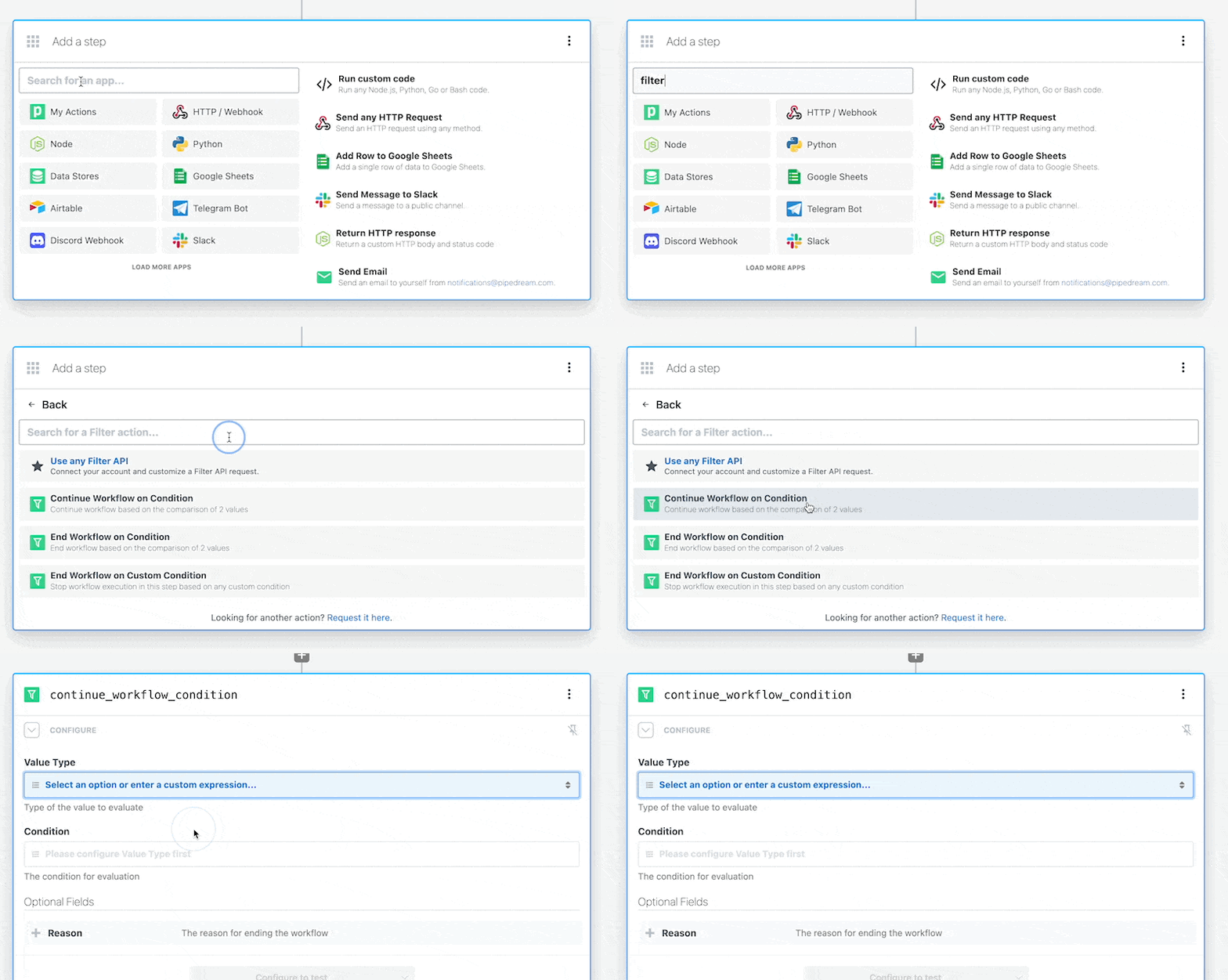
80
67
81
-
These actions let you configure the specific condition you'd like to evaluate:
68
+
Add a filter action to your workflow by searching for the **Filter** app in a new step.
82
69
83
-
-**Value type**: What type of input would you like to evaluate?
84
-
-**Condition**: Based on the value type, what is the condition to evaluate?
85
-
-**Value to evaluate**: The field you want to check (e.g., something like, "Name").
86
-
-**Value to compare against**: The value you want to compare the field against (e.g., something like, "Luke Skywalker").
70
+
The **Filter** app includes several built-in actions: Continue Workflow on Condition, Exit Workflow on Condition and Exit Workflow on Custom Condition.
In each of these actions, the **Value** is the subject of the condition, and the **Condition** is the operand to compare the value against.
89
73
90
-
#### End Workflow on Custom Condition
74
+
For example, to only process orders with a `status = ready`
91
75
92
-
This is a basic action that will immediately end your workflow. You can also add an optional prop that must evaluate to `true` (the most common use case here would be to evaluate the output of an earlier step within the workflow).
76
+
### Continue Workflow on Condition
93
77
94
-
### Using `$.flow.exit` in code
78
+
With this action, only when values that _pass_ a set condition will the workflow continue to execute steps after this filter.
95
79
96
-
If you need to extend the functionality even further and want to do this in code, [check out the docs](/code/nodejs/#ending-a-workflow-early) on `$.flow.exit()`.
0 commit comments